Release Notes

LeadBoxer Product Changes

The most recent updates to the LeadBoxer product.

July 06, 2015

Add extra datasets (websites)

We’ve added the option to add extra datasets to your LeadBoxer account at no extra charge. In other words, add as many datasets as you like to your account for the same low price. We are doing this to create more value for you, the customer, and lower the barrier to entry.

What is a dataset?

A dataset is anything that you want to measure. In the past we referred to datasets as sites, but the definition has changed to include a broader definition.
Now, a dataset can be a single page, subset of pages, campaign landing page, sub-domain, app. etc. Think Internet of Things.

Read here on how to add a dataset

April 10, 2015

Custom Lead Scoring

By popular demand: You asked – we delivered.

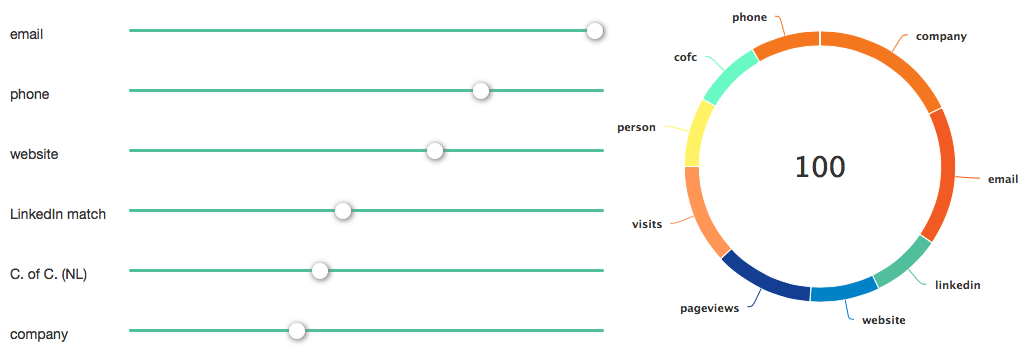
Custom Lead Scoring

Custom Lead Scoring

Q: what does this mean in english? 

A: you can influence how leads are scored.

Adjusting your Custom Lead Scoring settings will change the way leads are prioritised and ranked, in terms of how your lead list is ordered. The leads that get the highest score will appear at the top of the list.

How it works:

It is now possible to set weights on lead properties. In other words, you tell us what’s important, and we weight it. These are the properties you can customise:

  • email
  • phone
  • website
  • LinkedIn match
  • Chamber of Commerce (NL)
  • company
  • name
  • industry focus

Read more here on How to change the leadscore

March 24, 2015

Automatic Google Analytics Parameter Tracking

Get Campaign details added to your leads

Automatic Google Analytics parameter tracking can be accomplished with LeadBoxer and adds the values to your leads. We do this by automatically capturing the utm_* parameters from the landing pages and adding the UTM values to each lead profile.

In the near future we will also allow you to filter and rank based on these parameters

What Are UTM Parameters?

UTM parameters are tags that you add to a landing page or URL. When someone clicks and lands on a URL with UTM parameters, those tags are sent back to your Google Analytics for tracking.

For example, lets say I want to track clicks to a page called ‘mypage’ from a transactional email that I send out after one month. I would then insert a link to my site in that email:

http://mysite.com/mypage?utm_source=transactinalmail&utm_medium=email&utm_campaign=User :: Send 1 month followup

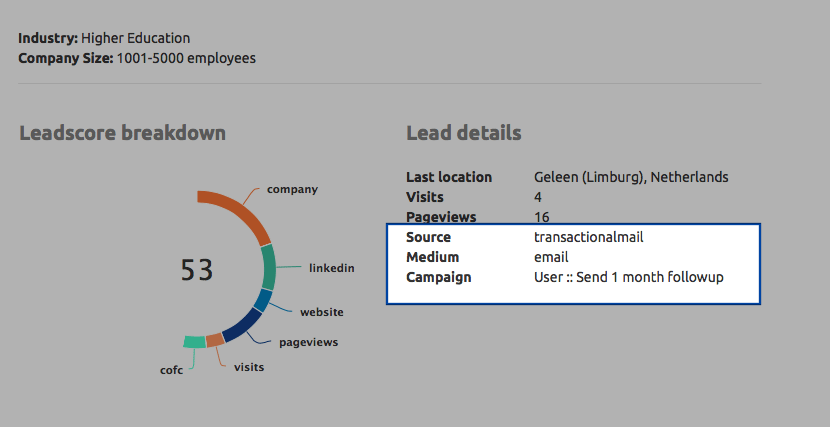
Any website visitor clicking on that link will subsequently show up in LeadBoxer like this:

google-tracking-parameters
Example of how tracing url parameters appear on the LeadBoxer interface

How to Create UTM Parameters for Your pages

The simplest way to create UTM parameters for your links is by using the Google Analytics URL Builder. This page also has some helpful hints on how to use the different UTM parameters.

  • Campaign Source (utm_source) – Required parameter to identify the source of your traffic such as: search engine, newsletter, or other referral.
  • Campaign Medium (utm_medium) – Required parameter to identify the medium the link was used upon ie. : email, CPC, or other method of sharing.
  • Campaign Name (utm_campaign) – Required parameter to identify a specific product promotion or strategic campaign such as a Spring Sale or other promotion.
  • Campaign Term (utm_term) – Optional parameter suggested for paid search to identify keywords for your ad. You can skip this for Google AdWords if you have connected your AdWords and Analytics accounts and use the auto-tagging feature instead.
  • Campaign Content (utm_content) – Optional parameter for additional details for A/B testing and content-targeted ads.

You can learn more about how to tag your links in Google Analytics Help. It also contains a handy chart view with an example of one campaign with different sources & mediums.

Note that UTM parameters are case sensitive, which means if you use abc for your utm_campaign tags on some links and ABC for your utm_campaign tags on other links, they will show up as separate campaigns in your Google Analytics. Also note that UTM parameters will be shown in the browser’s address bar, so be sure you’re not using any tags that you would want to remain unseen.

Additional reading:
http://www.degordian.com/blog/5-cool-examples-of-utm-tracking
http://blog.rafflecopter.com/2014/04/utm-naming-conventions

March 13, 2015

Auto Capture LinkedIn leads

LeadBoxer can automatically capture LinkedIn leads  from your visitor’s . You do this by creating a LinkedIn login button and providing a reward. You reward visitor’s who take an interest in your product or service in exchange for their LinkedIn’s contact information.

To get started, you need to get the LinkedIn API framework setup at LinkedIn.

See our docs for full details on how to capture LinkedIn leads


March 04, 2015

MailChimp lead generation

Use LeadBoxer to capture MailChimp leads. Identify quality leads from readers of your Mailchimp email newsletters

LeadBoxer will show you the email of the person who clicked through the newsletter, simply by adding a special link in the emails sent and adding code to the landing page.

Technical requirements:

  1. LeadBoxer account
  2. MailChimp account

Steps:

  1. Customize the links in your email newsletter
  2. Add some code to your landing pages

See our docs for MailChimp email tracking.

March 02, 2015

Rank Leads by Industry

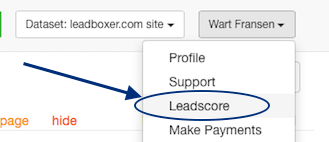
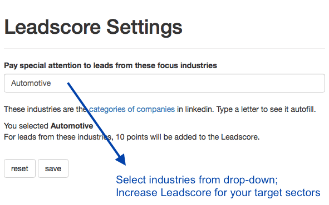
We’ve added the option to influence the Leadscore based on the LinkedIn ‘Industry’ category. You can boost Leadscore for specified industries with 10 points by adding them to a list in the Leadscore settings page.How to add an Industry filter to your Leadscore.Rank Leads by Industry step 1

  1. Login and go to your profile dropdown, you should see a menu-item called Leadscore, this is where you can add one or more focus industries.
  2. Rank Leads by Industry - step 2On the Leadscore settings page, use the auto-fill dropdown of industries,  imply start typing and   list of industries will appear.
February 02, 2015

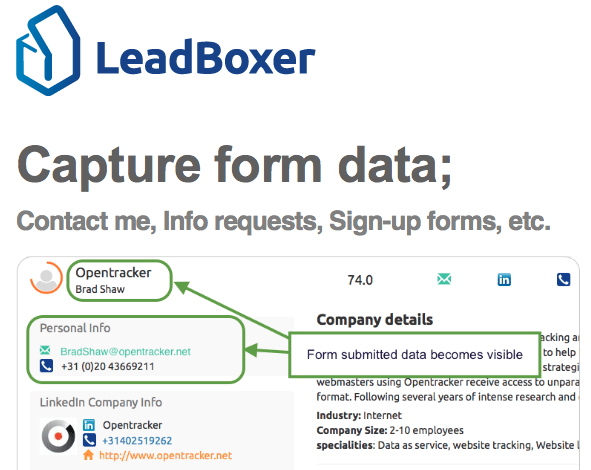
Capture form data

Contact me, Info requests, Sign-up forms, etc.

capture-form-data-thumbnail

By default, LeadBoxer collects info about what companies are visiting your site, and what they are looking at.

This is a baseline.

Increase the amount of information and create fuller lead profiles

By inserting a few lines of code, you can make the information submitted by your forms visible in LeadBoxer.

You can do this with any kind of form whether its a Contact form, Demo request or White paper download. Any information submitted by your visitors can be submitted and used to qualify leads.

Let’s take a (Contact) Form as an example that includes these fields:

  • Name
  • Email Address
  • Telephone No.
  • Company
  • Address

This is all information which can be used to make communication and lead generation more efficient, as we will show you all activity (pageviews) from this identified visitor from the past (and also all future visits).

Our specialty is to identify the companies who are visiting, and, for example, if multiple people from that company visit, along with the specific product interest. We combine this data with company contact info. The more information, the more complete the picture. We use the data to automatically prioritise the leads for you.

The technical solution is to ‘send’ us this information, when the visitor clicks submit.

The documentation which explains how to do this is located in our knowledge base

January 31, 2015

Change log jan-2015

– LinkedIn Company Industry: Added option to influence the LeadScore based on linkedIn industry. you can boost the LeadScore for specified industries with 10 points by adding them to a list in the LeadScore settings page.

– LeadScore visibility improved: the LeadScore breakdown graph now only shows the parameters that influence the leadscore

– Dutch Chamber of Commerce: added dutch Chamber of Commerce (KvK) data matches to lead details

– LeadScore algorithm: improved calculations:

The full calculation is now:

20 if the visitor is from an identified company
30 for a known email
10 for known linkedIn match
up to 10 points for pageviews
up to 10 points for visits
5 for a known linkedIn phone number
5 for a name
5 for a know website
5 for CofC match
———————————
100 max score

January 28 Update

– Data architecture improvement: The data in the app is now visitor-based, meaning that we show only one entry per visitor (browser). Previously this was based on visits resulting in double or multiple entries per visitor. No more!

– LeadScore development LeadScore improvements, we have added new parameters to the mix: email, first name, phone number and chamber of commerce (NL only).

The full calculation is now:

45 if the visitor is from an identified company
10 for known linkedIn match
up to 10 points for pageviews
up to 10 points for visits
5 for a known email
5 for a known linkedIn phone number
5 for a name
5 for a know website
5 for CofC match
———————————
100 max score

– Added clickstreams to the lead details view
– added Industry
– added Company Size:
– Added option to hide leads from your the lead lists
– Added LinkedIn address

January 21 update

– Added result lists (total number of leads)

– numerous bug-fixes
– improvements in mobile app view

January 16 Update

– release of the new ‘actionable interface’