Release Notes

LeadBoxer Product Changes

The most recent updates to the LeadBoxer product.

February 02, 2017

New version of LeadBoxer released

At LeadBoxer we have always let our customers’ needs to lead the development of our product. We believe that through the years our platform has improved greatly and this is to a great extent thanks to the feedback we get from all the stakeholders, including you. Early 2017 we released a complete new version of LeadBoxer. The new Dashboard reflects our goal to be the Sales & Marketing intelligence tool of the future!

We have been working tirelessly on improving the product based on the needs of our customers. Along with revamping the interface, we introduced filters, smart lists, and alerts in order to improve your experience. Here are the major updates:

New Dashboard

Based on feedback from hundreds of users, we went back to the drawing board and completely rebuilt the leadboard and the dashboard using the latest technologies and best practices. Thus creating a really cutting-edge platform that can suit your sales & marketing intelligence needs.

Introducing Filters

You ask. We deliver. The most frequent request has been the ability to filter incoming leads on specific criteria and behaviour. While you still can set the leadscore to get the best leads ranked to the top, we’ve added smart filtering to the mix.

Adding Smartlists

A smartlist, like it sounds, allows you to create and save custom filters for use as pre-sets/ smartlists. They are saved to your account and can be accessed from a drop-down menu. You can also send them to others internally so that the right person can follow-up on your leads.

Alerts

Once you have defined your ideal smart list(s), LeadBoxer will email them to you on a daily or weekly basis. This will ensure that the top leads are always followed-up by you and your team.

Complete information can be found here: LeadBoard 2.0 
December 15, 2016

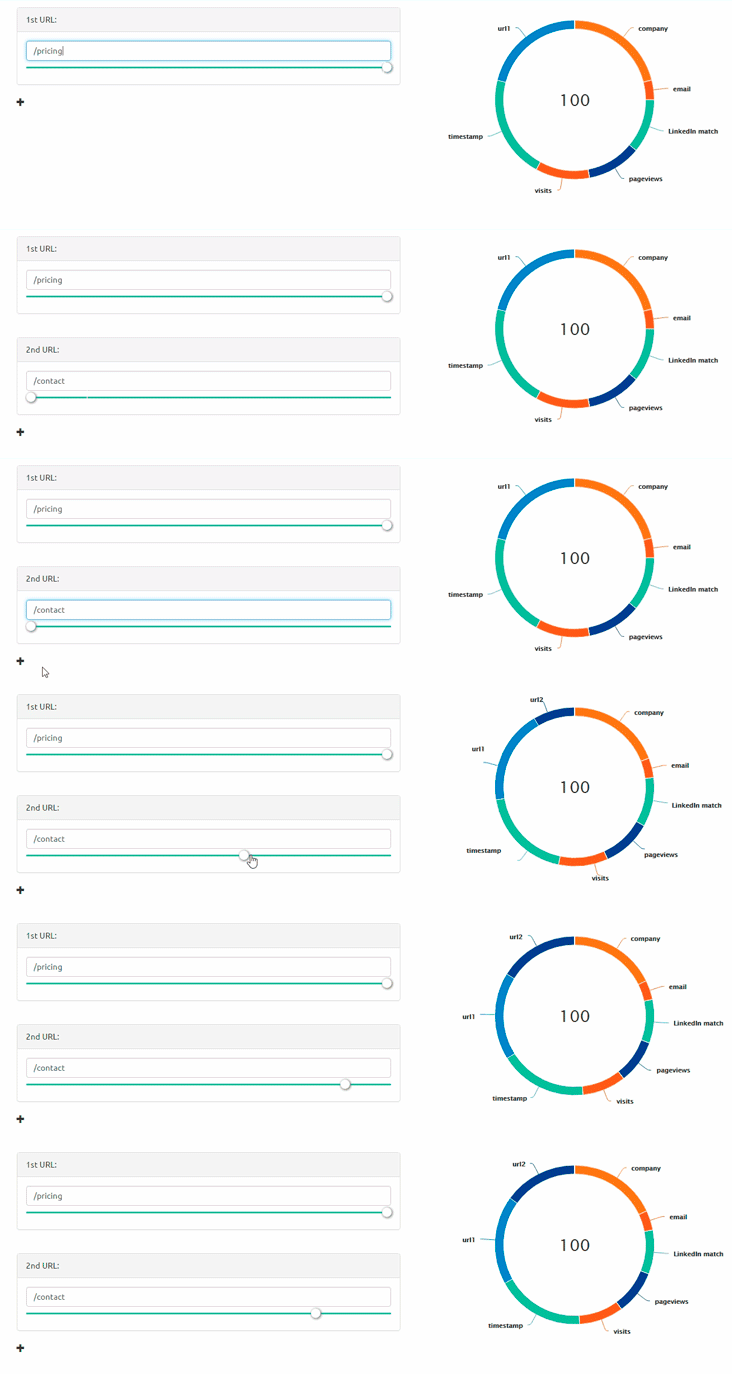
New Feature: Increase Leadscore When Key URLs are Visited

While you can already change your leadscore, we have made a great update that makes the leadscoring functionality even more valuable for your business. We have released an update that makes it so that when visitors visit a key URL on your website, his or her leadscore will increase. This means that when a visitor goes to important pages and shows interest in your pricing or features, you’ll know that they’re likely keen to learn more. When the leadscore of this interested person increases, they’ll rise to the top of your lead list.

Why is this new feature important?

This feature is important because it allows you to more clearly discover “buy signals” that certain visitors are giving out. For buy signals, we mean a visitor going to pages such as the pricing page. When a person goes to the pricing page, they’ve signaled that they are considering a purchase– you should pay attention to this person.

Let us examine some examples of how this will help you close even more deals…

How to Assign a Single URL.

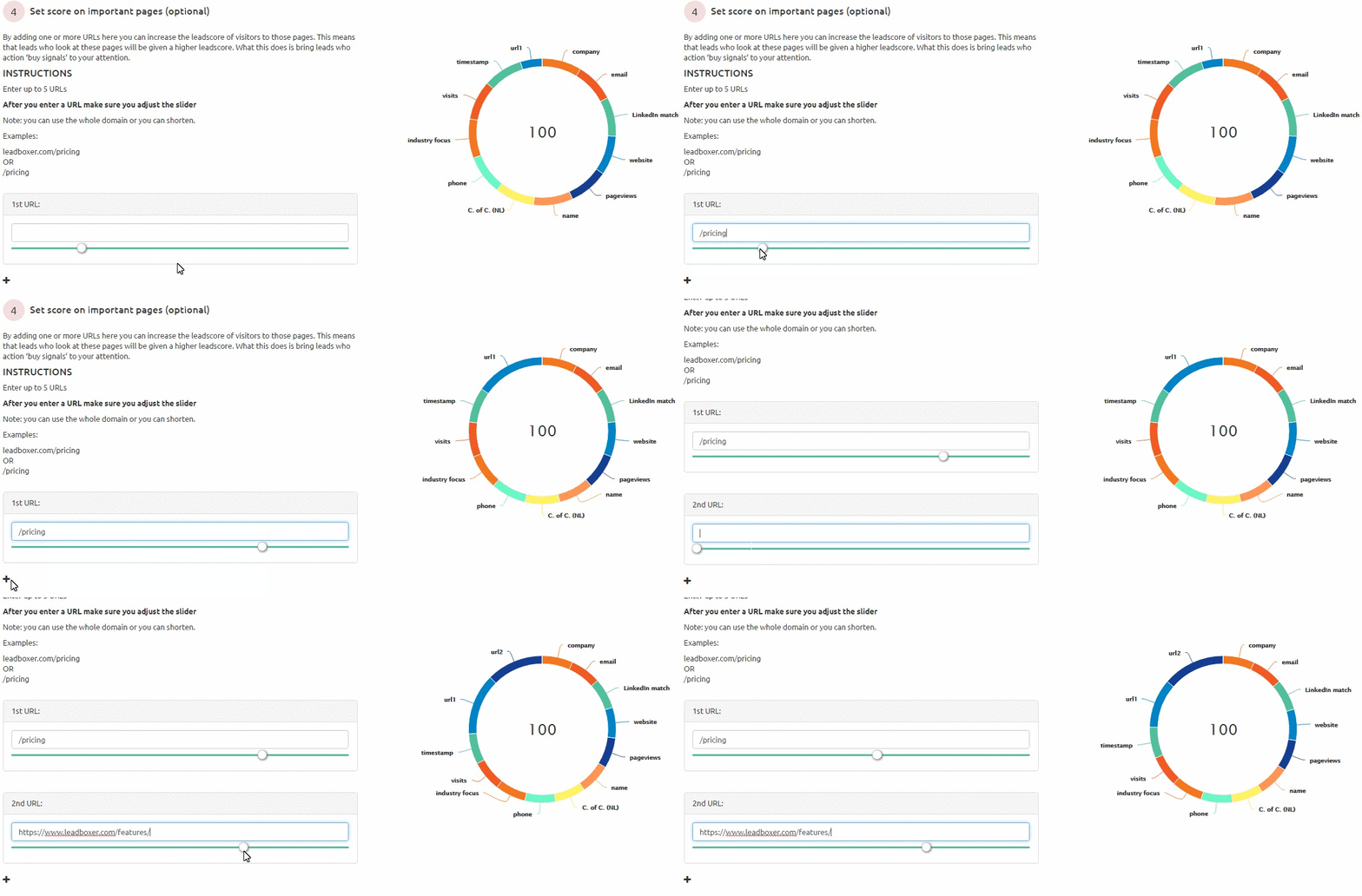
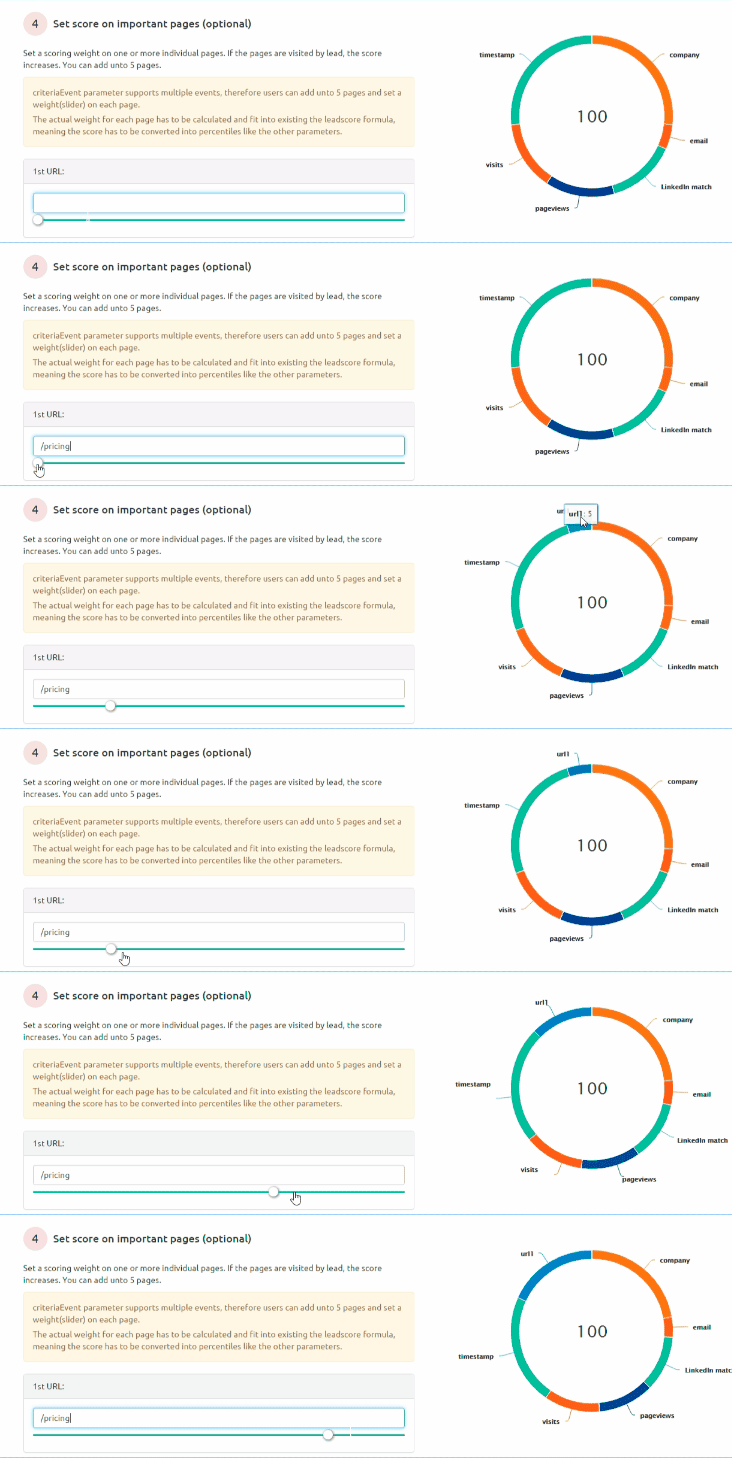
When you go to your leadscore settings, you will scroll down until you see item number 4. At this point, you will tell LeadBoxer which URL matters most to your business. When you tell LeadBoxer this, it will make it so that a visit to that page increases the leadscore of a visitor. For each page that you add, you can assign a weight for its importance.

Using Relative Paths to Target Multiple URLs.

If you have multiple pricing tiers (for example different levels of web hosting at a hosting company) you can target multiple URLs at once. For example, you make have the URL following paths:

  • www.mywebsite.com/plans/plan-a
  • www.mywebsite.com/plans/plan-b
  • www.mywebsite.com/plans/plan-c
In this scenario, you can define your key leadscore URL as:
  • www.mywebsite.com/plans/*
This will catch everything that comes after ‘plans/’. So, in case you launch or test new plans in the future, you won’t miss out on tracking opportunities covered.

Adding Multiple URLs.

If you want to add more than one URL to be tracked in your leadscore, you can! You can add up to 5 different URLs. For each URL that you add to your leadscore settings, you are able to assign a different weight. This means that each URL will individually impact how a leadscore is calculated.

Ready to test out this new feature? Click here to login or click here to create a LeadBoxer account.

December 14, 2016

Update November 2016

Changes & Improvements in November. Read further to see the update in November 2016.

1. Advanced search update

It is now possible to do searches more specific to your needs with the updated ‘advanced search’ options. You can find the improved search function by clicking on the arrow on the right of the search bar.  Here you can open a dropdown menu to filter your search to either one of the following options:

  • City: search for a specific city where your leads are located
  • Country: search for a specific country where your leads are located
  • IP number: search for leads with a specific IP number
  • Campaign: search for leads generated by a specific campaign
  • Source: search for a specific source of your traffic such as search engine, or newsletter
  • Medium: search for a specific utm_medium such as email, CPC or another method of sharing


2. Leadscore by URL

We have added a new option to the lead score calculator. You can now set a value to specific URLs visited by your leads. This option allows you to choose up to 5 different URLs and you can select how much you value a visit of this lead for each of the URLs specifically. You can either copy and paste the URL as a whole, or choose a segment of the URL such as “/pricing” or “/products/” if this is part of the URL(s) of interest.


October 27, 2016

Update October 2016

Changes & Improvements for October. Read further to see the update of lead properties in October 2016.

1. Lead Properties (per lead)
We have added a Lead Properties section to each lead. This includes all relevant technical details we can provide for the lead. You can find the lead properties if you expand a lead. There is a navigation item called Lead Properties.
If there is any custom data or property for the lead we auto expand the field, if not – click to expand and reveal:

  • IP address
  • ISP
  • original referrer (when available)
  • platform
  • browser
  • Screen size
  • lead card – this is a unique URL with this user’s details

2. Email address displayed when no company identified.
In some cases when an email address has been identified, but no Company is known, we display the email address instead of ‘unidentified Company’

3. Noise/ clutter removed:
The URL to a leadcard has been removed visually and replaced by the words “lead card: Open”

4. On leadboard: ‘unknown company’ linked to documentation
‘how to identify’ documentation linked to ‘unidentified Company’ – this documentation gives ideas on how to enrich the system – in other words, what can be done to improve data when there are too many unidentified companies.

5. Improved clarity: clearly display Dataset name on Instructions page when Lead Pixel is shown and instructions are given for inserting code snippet into source code

6. Introduction materials – script installation and Tour of Features – video demonstration of main Features. These materials automatically display upon first login session when a new account is created.
i. LeadBoxer Introduction Video
ii. Getting Started – 4 steps – Profile and Lead Pixel confirmation
iii. Pixel check
iv. add colleagues
v. add lead target details
vi. leadboard >> pixel not installed? >> introductory video

7. Auto-save implemented for leadscore. It is no longer necessary to ‘save’ adjustments to the leadscore. When changes are made to the page by sliders, etc, these changes are automatically saved.

August 02, 2016

LeadScore Improvement & new resources

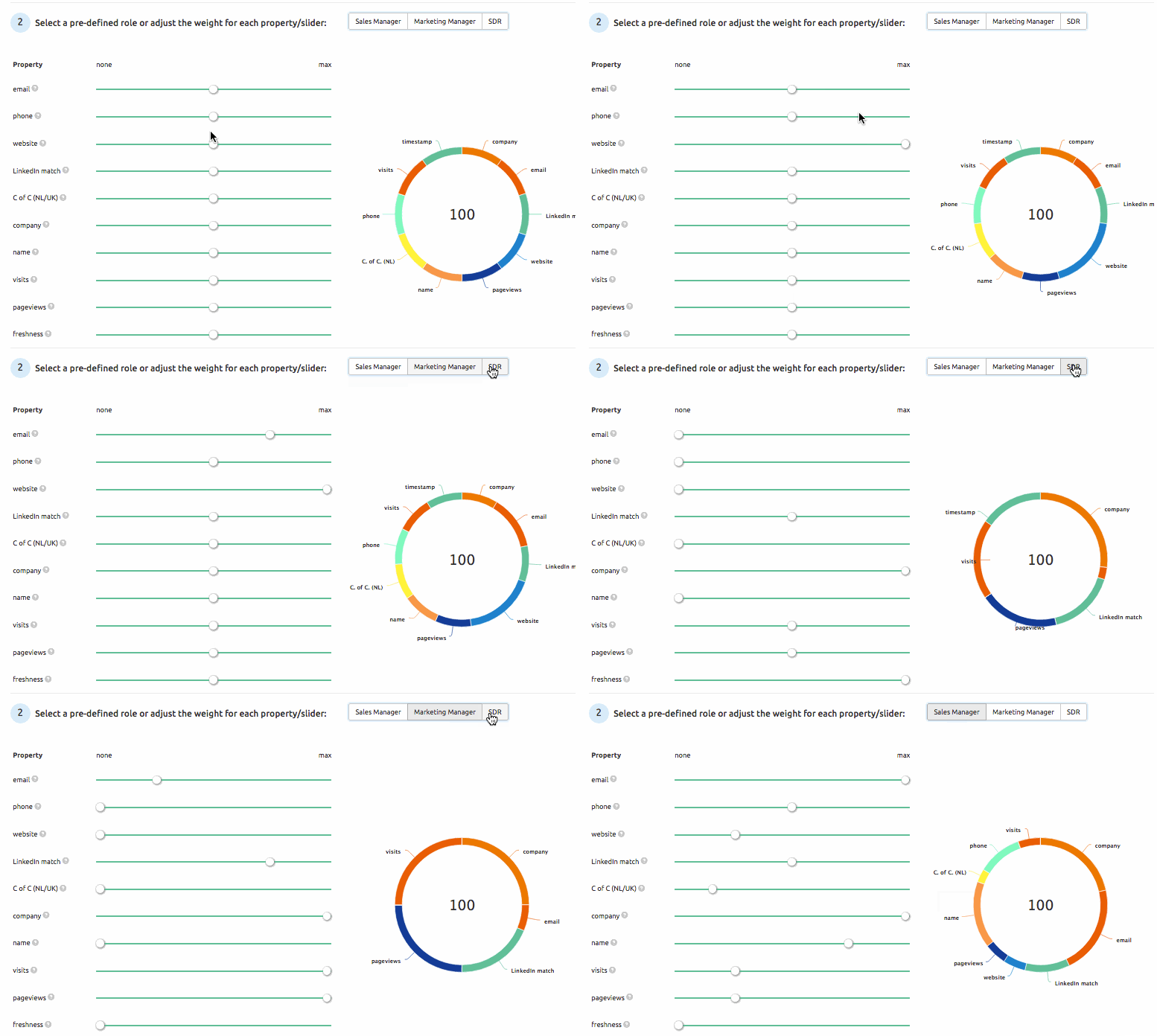
Pre-defined leadscore settings based on roles

We have added the option to select a pre-defined leadscore settings on the leadscore setting page.
This leadscore improvement enables you to change the leadscore setting so it best fits your personal need.

We created leadscore settings for these 3 roles:

  • Sales Manager
  • Marketing Manager
  • SDR (Sales development Rep)

For sales managers we put the emphasis on personal information, for Marketing managers the emphasis is on behaviour, and for SDR’s its about freshness and company data.

leadscore

We advise to use these as a starting point and improve/adjust the setting based on your own preference

New Blog post

Our Sales Manger Sander wrote a blog post on how to follow up on a lead, read it here:
How to follow up on leads

New video added

Since a couple of weeks we have been putting effort in making it easier for LeadBoxer (trial) users to start using the product. One of the results is this introduction video

To test our new platform, click here.

July 22, 2016

Download Improvements & New Website & Inspiration

In this update, we have for you some download improvements, a revamped website, and some small bug fixes.

Download improvements

  1. We have added a new column that has a direct link to the lead card. This is static link to a page with the full profile of the lead, included the clickstream or behaviour or customer journey for the last 5 sessions. It similar to the information you receive when you share via email.
  2. We grouped all the specialties together into one new column, so that they will not clutter our overview.

New Website

You may have noticed already, we have relaunched our new website this week. A more ‘business’ look that is lighter and more colourful. We will be adding more pages every week to convince more people to try and use LeadBoxer.

Inspirational update

We also have added a small update to make LeaBoxer more fun and perhaps also a bit inspiring, can you find it?

Let us know if you like it or if you have other wisdom you want to share.

Bugs fixes
  • We fixed an issue where our auto-form-tracking feature didn’t work properly in Microsoft IE and Edge browsers.
  • Fixed documentation to reference the dataset ID in the javascript examples. not account ID.
July 19, 2016

New Features and Improvements

Unidentified Companies Filter

We’re pleased to announce the release of some much-requested new features and improvements.

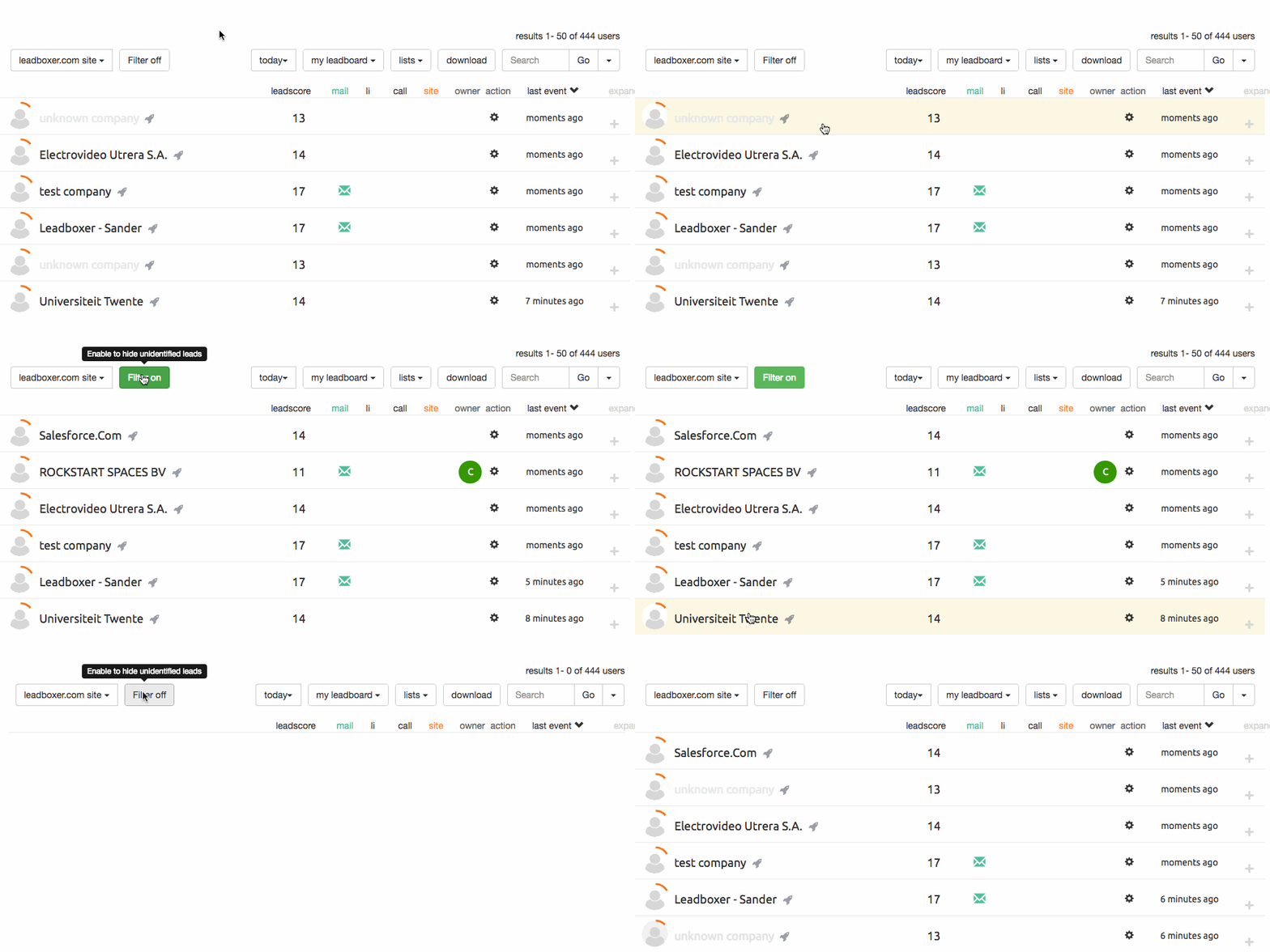
A button that filters out all the unidentified companies, giving a cleaner, more useful leadboard. Especially useful when sorted by ‘last event’.

unknown-company-filter

Download improvements

We also released the first step of a major overhaul of the Download functionality to streamline it into a more useful document. The goal is to eliminate noise.

This week:

  1. many irrelevant columns were removed
  2. column headers were re-named to plain english
  3. the column ordering was re-designed to be more logical


Auto-exclude tag

This new setting allows you to automatically exclude or hide all leads that have a specific tag

How to use:  if you want to exclude leads that have visited specific pages on your website, accomplish this by adding a unique tag to these leads with a small javascript snippet.

see full instructions on how to auto exclude unqualified leads

Bug fixes

  • Fixed a bug where new lists would not show up when created from within the action window,
  • Fixed a link to the LinkedIn company page from an expanded lead in the leadboard
June 23, 2016

New Features and Action Menu

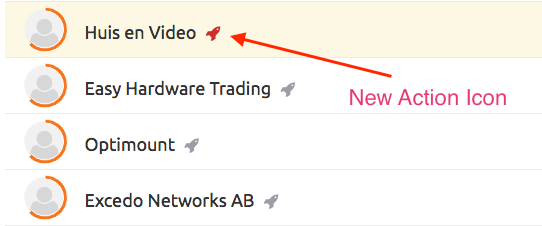
We are constantly trying to update LeadBoxer to fit our consumers needs. This week we have added some new features such as a new Action Menu to the LeadBoxer lead board. This Rocket Icon, next to your leads title, is the new Action Menu. It contains multiple actionable tasks and things you can do with your leads.  Such as:

  • Edit the company name
  • Perform a search on the company name
  • Report the lead as an ISP (Internet Service Provider)
  • Share the full lead via email
  • Remove (hide) the Lead from your Leadboard

LeadBoxer-action_icon

Two new features:

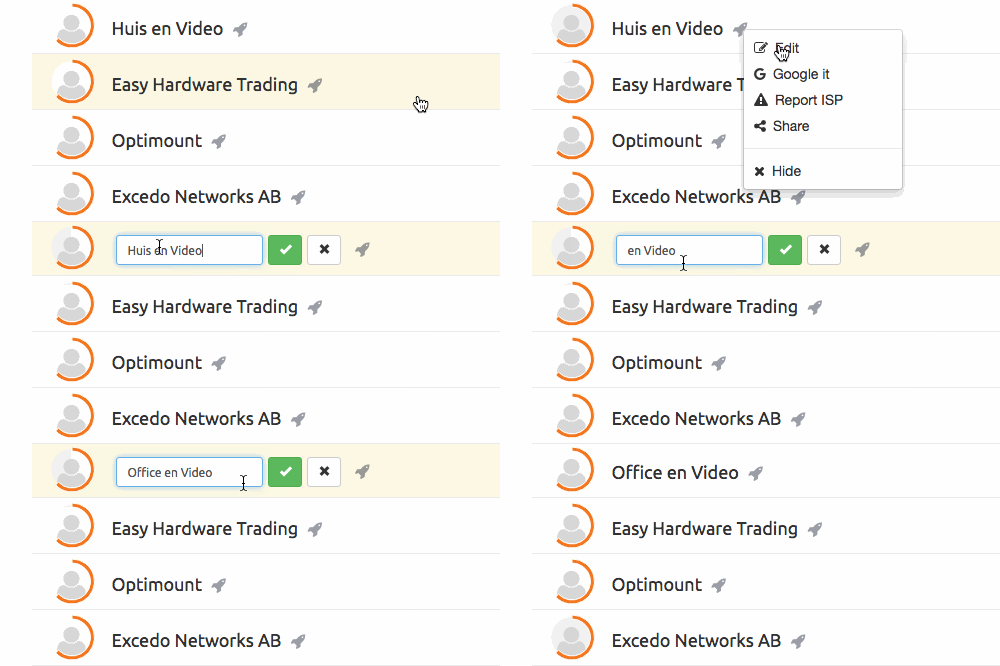
1. Edit your Lead Data

We have taken first step in a much requested feature: manually edit your Lead data.
LeadBoxer-edit-lead

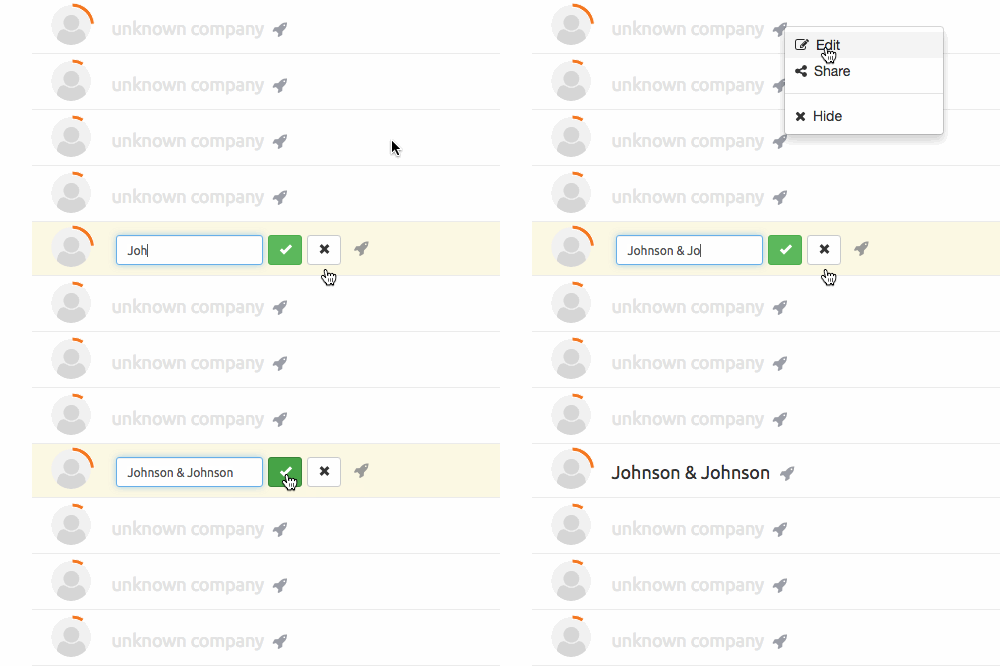
Simply click the Edit button and type the company name you want to it show.

The data will be stored in our database, and you can revert by removing your manual entry again.

This also works for Leads that have an unknown company name:


LeadBoxer-add-lead

2. Report  (ISPs) or Network names

We maintain a list of close to 50.000 ISP’s and networks that we use to automatically filter out of all the visitors we cant identify as coming from a real company, Now you can help us by reporting ISPs or garbage company names, so we can add them to our list and remove them from everybody’s results.